Best Home Computer for Seniors: A Complete Buying Guide
Choosing the best home computer for seniors can make everyday technology much easier and more enjoyable. A good computer can help seniors stay connected with family and friends, browse the internet, watch videos, manage photos, read news, attend online classes, and handle everyday tasks. However, not every computer is designed with simplicity and comfort in mind.
For seniors, the ideal home computer should be easy to use, have a clear display, provide comfortable controls, offer reliable performance, and include useful accessibility features. This guide explains what to look for when choosing a computer for an older adult and how to find a model that fits different needs and budgets.
What Makes the Best Home Computer for Seniors?
The Best Home computer for seniors does not necessarily need the most powerful processor or expensive hardware. Instead, it should provide a smooth and straightforward experience.
A senior-friendly computer should have a bright, easy-to-read screen, a comfortable keyboard, responsive performance, simple software, and good connectivity. It should also be reliable enough for everyday activities without requiring frequent technical maintenance.
Ease of use is particularly important. A computer that takes too long to start or becomes slow when multiple applications are open can quickly become frustrating. Choosing balanced hardware can provide a much better experience.
Desktop Computer vs. Laptop for Seniors
One of the first decisions is whether to purchase a desktop computer or laptop.
Desktop Computers
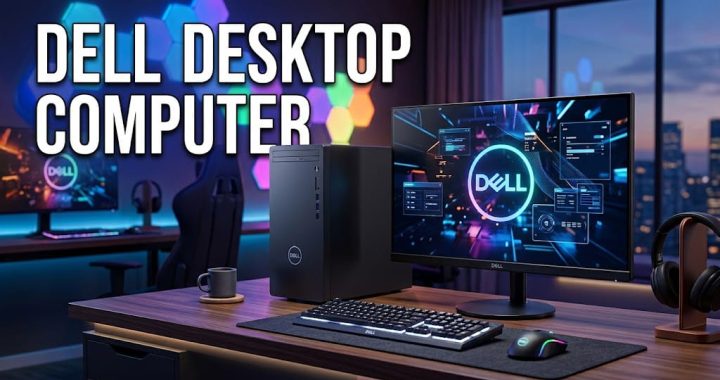
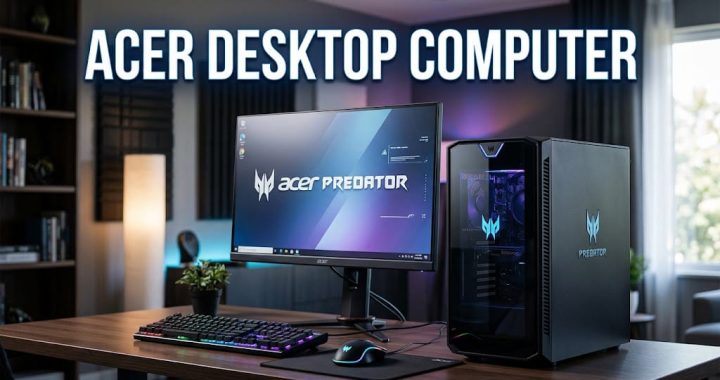
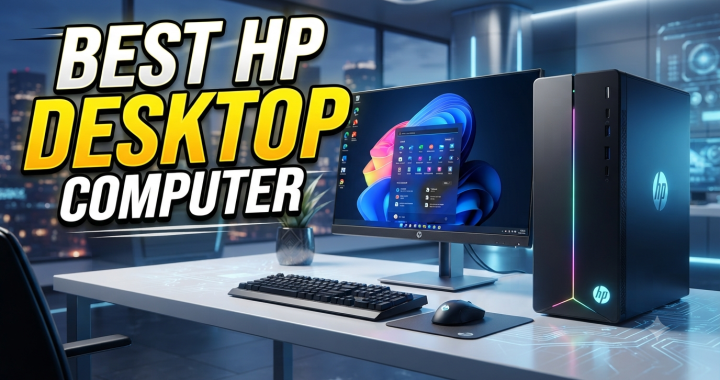
Desktop computers are an excellent choice for seniors who primarily use their computer at home. They generally offer larger screens, comfortable keyboards, and better viewing angles.
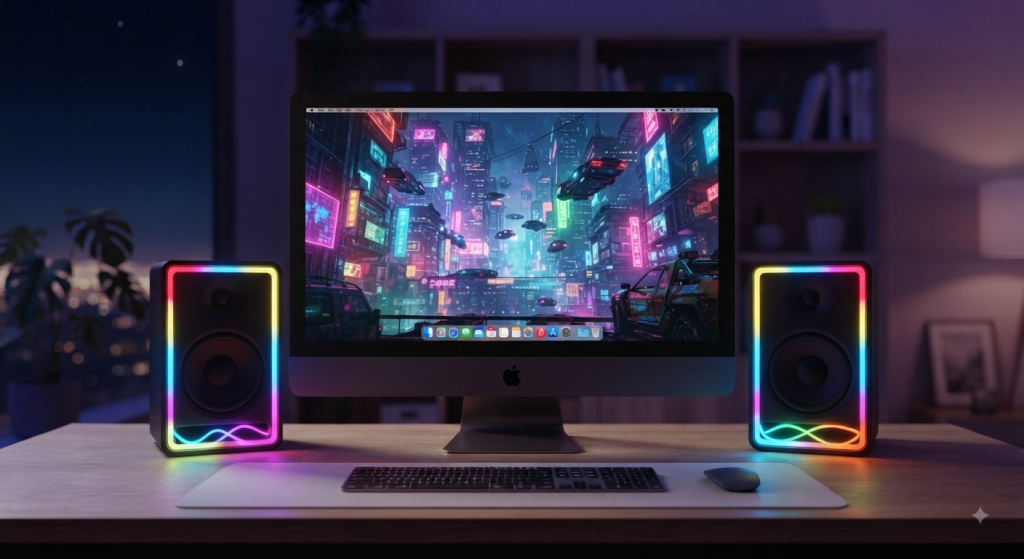
An all-in-one desktop can be especially convenient because the computer components are built into the monitor. This reduces cable clutter and creates a clean setup on a desk.
A desktop with a 23- to 27-inch display can provide plenty of screen space for reading websites, viewing photos, and making video calls.
Laptops
Laptops are useful for seniors who want flexibility. They can be used in different rooms and are easier to move around than desktop computers.
A laptop with a 15- or 16-inch screen can provide a good balance between portability and readability. Models with touchscreens can also make certain tasks more intuitive.
For seniors who mainly use a computer in one location, however, a desktop may offer a more comfortable viewing and typing experience.
Choose a Large and Clear Display
Display quality is one of the most important features of a senior-friendly computer.
A larger screen makes text, icons, photos, and websites easier to see. A Full HD display is generally sufficient for everyday activities, while higher-resolution screens can provide sharper images.
Look for a display with good brightness and viewing angles. A matte or anti-glare screen can also help reduce distracting reflections in bright rooms.
Screen scaling is another useful feature. Modern operating systems allow users to increase the size of text, icons, and other interface elements without changing the physical resolution.
Comfortable Keyboard and Mouse
Even a powerful computer can be difficult to use if the keyboard and mouse are uncomfortable.
A full-size keyboard with clearly labeled keys can be helpful. Seniors who type frequently may prefer a keyboard with comfortable spacing and responsive keys.
The mouse should move smoothly and have buttons that are easy to click. Wireless keyboards and mice can reduce cable clutter and create a cleaner workspace.
For people who find a traditional mouse difficult to control, an ergonomic mouse or alternative pointing device may provide greater comfort.
Performance Requirements
Seniors who use a computer mainly for web browsing, email, video calls, document editing, and entertainment do not need an extremely powerful machine.
A modern mid-range processor, 8GB of RAM, and an SSD can provide a smooth everyday experience. Users who frequently edit photos, work with large files, or run demanding applications may benefit from 16GB of RAM.
An SSD is particularly useful because it can make the computer start faster and applications open more quickly than a traditional hard drive.
Storage requirements depend on usage. A 256GB SSD can be enough for basic tasks, while 512GB or more is preferable for users who keep large photo, video, and document collections on the computer.
Simple and Accessible Operating System
The operating system should be easy to navigate and provide accessibility options.
Modern Windows and macOS computers include features that can make computing easier. Users can increase text size, adjust display settings, use screen-reading features, enable magnification, and customize other controls.
Before buying a computer, consider which operating system the senior is already familiar with. Familiarity can make the transition much easier.
If family members regularly provide technical assistance, choosing the same operating system they use can also make troubleshooting simpler.
Video Calling Features
Video calling has become an important way for seniors to stay connected with family and friends.
A computer with a built-in webcam and microphone can make video calls much easier. Look for a webcam that provides a clear image and a microphone that produces understandable audio.
A larger screen can also make video calls more comfortable because faces and shared content are easier to see.
Popular video-calling services can be used for family conversations, appointments, community activities, and other online communication.
Good Speakers and Headphones Support
Audio quality is another important consideration.
A computer with clear built-in speakers can be useful for watching videos, listening to music, and participating in video calls. However, seniors who have difficulty hearing may prefer headphones or external speakers.
When choosing a computer, make sure it supports commonly used wired or wireless audio devices.
Connectivity and Ports
A senior-friendly computer should have enough connectivity options for everyday accessories.
USB ports can be used for keyboards, mice, flash drives, printers, and other devices. HDMI or other display connections can be useful when connecting an additional monitor or television.
Wi-Fi is essential for internet access, while Bluetooth can make it easier to connect wireless keyboards, mice, headphones, and speakers.
Having multiple connection options can reduce the need for complicated adapters.
Security and Privacy
Security should always be considered when purchasing a home computer.
Seniors may receive suspicious emails, fake notifications, or misleading advertisements while browsing the internet. A computer with current security updates and built-in protection can help provide a safer experience.
Use strong, unique passwords and enable additional account security features when available. It is also important to keep the operating system and applications updated.
A password manager can help organize account passwords without requiring users to remember every password individually.
Easy-to-Use Support
Technical support can be extremely valuable for seniors.
Before buying a computer, consider whether the manufacturer provides useful support resources. Online guides, troubleshooting tools, and customer service can make it easier to solve common problems.
Family members can also prepare the computer before giving it to a senior. Installing necessary applications, creating shortcuts, setting up email, and adjusting display settings can make the first experience much easier.
Best Computer Features for Different Senior Users
Different seniors have different requirements.
For basic web browsing and email, an affordable computer with 8GB of RAM and an SSD may be more than enough.
For video calls and entertainment, prioritize a large display, good webcam, clear speakers, and reliable Wi-Fi.
For photo storage, choose a computer with at least 512GB of storage or plan to use cloud or external storage.
For users who need a computer for documents and productivity, a comfortable keyboard, larger screen, and responsive processor are important.
For seniors who travel around the home, a lightweight laptop may be more practical than a desktop.
Why an All-in-One Computer Can Be a Great Choice
An all-in-one computer is often a strong option for seniors who want a simple home setup.
Instead of having a separate computer tower and monitor, an all-in-one places most components behind the display. This can reduce desk clutter and make installation easier.
Many all-in-one computers also include built-in webcams and speakers, which are useful for video calls and entertainment.
The main disadvantage is that upgrading internal components can be more difficult than with a traditional desktop. Therefore, it is important to choose appropriate specifications at the time of purchase.
Tips for Setting Up a Senior-Friendly Computer
After purchasing the computer, spend some time making it easier to use.
Increase the text and icon size if necessary. Remove unnecessary applications and shortcuts from the desktop. Place frequently used applications in an easily accessible location.
Set up email, video-calling applications, printers, and other essential services before handing over the computer.
It can also be useful to create a simple written guide explaining common tasks such as opening email, searching the web, starting a video call, and shutting down the computer.
Final Thoughts
The best home computer for seniors should focus on simplicity, comfort, reliability, and accessibility rather than unnecessary high-end specifications. A large and clear display, comfortable keyboard, responsive SSD, sufficient memory, good webcam, strong connectivity, and easy-to-use software can create an excellent experience.
For seniors who stay at home most of the time, an all-in-one desktop can provide a clean and comfortable setup. For those who want flexibility, a laptop can be the better choice.
Most importantly, choose a computer based on the user’s actual needs. A simple, reliable machine that is comfortable to operate is often much more useful than an expensive computer filled with features that may never be used. With the right setup, a home computer can help seniors communicate with loved ones, enjoy entertainment, explore the internet, organize important files, and stay connected with the digital world.