How to Connect AirPods to Android: Easy Step-by-Step Guide (2026)
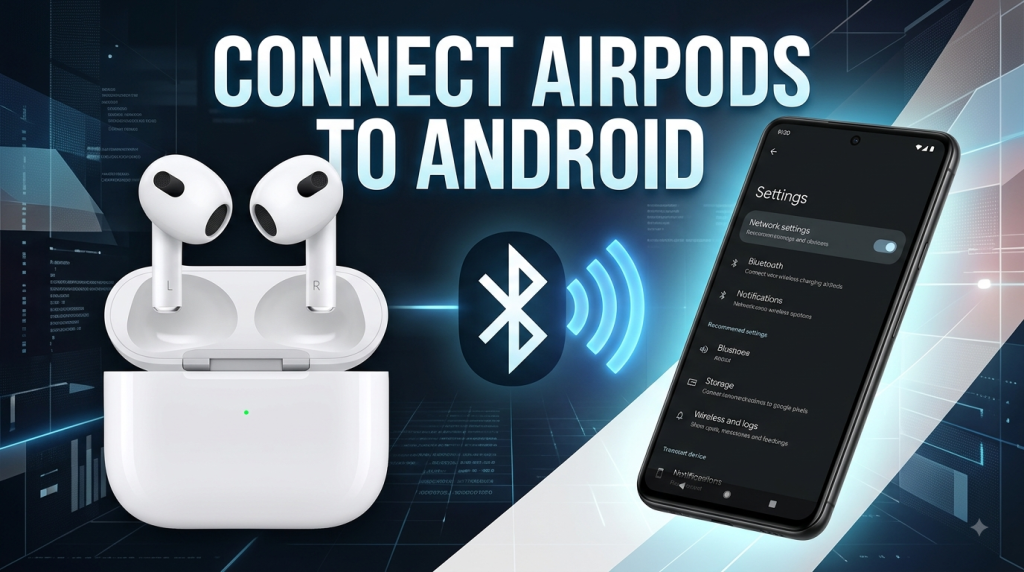
f you’re wondering how to connect AirPods to Android, you’ll be happy to know that AirPods can also work with Android phones. Whether you have a Samsung Galaxy, Google Pixel, or another Android device, AirPods can connect through Bluetooth just like other wireless earbuds.
If you recently switched from an iPhone to Android or received a pair of AirPods as a gift, you may be wondering how to connect them. The good news is that the process is simple and usually takes only a few minutes.
In this guide, you’ll learn how to connect AirPods to Android, how to put them into pairing mode, what features work on Android, and what to do if your AirPods won’t connect.
Can You Connect AirPods to Android?
Yes. AirPods can connect to Android phones using Bluetooth. You don’t need an iPhone to use them for basic listening and calling.
AirPods work with Android devices from popular brands such as Samsung, Google, Motorola, OnePlus, and many others. The basic connection process is similar to connecting any Bluetooth headphones.
However, some Apple-specific features may not be available when AirPods are paired with an Android phone. The basic functions, including audio playback and microphone use, generally work normally.
What You Need Before Connecting AirPods
Before you start, make sure you have:
- AirPods with some battery charge
- An Android smartphone
- Bluetooth enabled on your Android phone
- The AirPods inside their charging case
It’s also a good idea to keep your AirPods and Android phone close together during the setup process.
How to Connect AirPods to Android
Follow these steps to pair your AirPods with your Android phone.
Step 1: Open Bluetooth Settings
First, unlock your Android phone and open the Settings app.
Look for an option such as Connected devices, Connections, or Bluetooth. The exact name can vary depending on your phone manufacturer and Android version.
Tap Bluetooth and make sure Bluetooth is turned on.
You can also open your phone’s Quick Settings panel and turn Bluetooth on from there.
Step 2: Put Your AirPods in the Charging Case
Place both AirPods inside their charging case.
Keep the lid open. You don’t need to remove the earbuds from the case to start the pairing process.
Step 3: Put AirPods in Pairing Mode
The next step is to make your AirPods discoverable.
For many AirPods models with a physical setup button, press and hold the button on the back of the charging case until the status light starts flashing white.
If you have a newer AirPods case that uses a touch-sensitive setup area instead of a traditional button, follow the pairing method designed for that model.
A flashing white light generally indicates that the AirPods are ready to pair with a nearby device.
Step 4: Find AirPods on Your Android Phone
Return to the Bluetooth settings on your Android phone.
Wait for the list of available devices to appear. You should see your AirPods listed by their name.
Tap the AirPods name.
For example, they may appear as AirPods, AirPods Pro, or a customized name if they were previously renamed.
Step 5: Confirm the Pairing
Your Android phone may display a Bluetooth pairing request.
Tap Pair or OK to confirm.
After a few seconds, your AirPods should appear under your phone’s paired or connected devices.
That’s it. Your AirPods are now connected to your Android phone.
How to Connect AirPods Pro to Android
The process for connecting AirPods Pro is generally similar.
First, open Bluetooth settings on your Android phone. Then place the AirPods Pro in their charging case and put the case into pairing mode.
When the AirPods Pro appear in the available Bluetooth devices list, select them and confirm the pairing request.
Once connected, you can use the AirPods Pro for music, videos, phone calls, and other Bluetooth audio.
Features such as active noise cancellation may depend on the AirPods model and how the earbuds are controlled, but basic Bluetooth audio does not require an Apple device.
How to Check If AirPods Are Connected
After pairing your AirPods, you can check their connection from your Android phone.
Open:
Settings → Bluetooth → Paired Devices
Your AirPods should appear in the list.
You can also play a song or video to confirm that sound is coming through the earbuds rather than the phone’s speakers.
If your AirPods are connected but you don’t hear audio, check the phone’s media output and volume settings.
What Features Work With AirPods on Android?
AirPods can provide many basic functions when connected to Android.
Depending on your AirPods model and Android phone, you can typically use them for:
- Listening to music
- Watching videos
- Making phone calls
- Using the built-in microphone
- Bluetooth audio
- Basic playback controls
- Noise-control features on supported models
However, the Android experience isn’t exactly the same as using AirPods with an iPhone.
Some Apple ecosystem features may be unavailable or limited because they depend on Apple’s software and devices.
What Features May Not Work on Android?
When you connect AirPods to an Android phone, some Apple-exclusive features may not be available in the same way.
For example, you may not get the full Apple ecosystem experience, including certain automatic device-switching features, native battery displays, or some Siri-related functions.
The exact experience can also vary depending on your AirPods generation and Android phone.
If you mainly want wireless audio and calls, however, AirPods can still be a practical option.
AirPods Not Connecting to Android? Try These Fixes
Sometimes AirPods don’t appear in the Bluetooth device list or refuse to connect. Try these troubleshooting steps.
1. Turn Bluetooth Off and On
Open your Android phone’s Bluetooth settings.
Turn Bluetooth off, wait a few seconds, and turn it back on.
Then put the AirPods back into pairing mode and search again.
2. Make Sure AirPods Have Battery
Low battery can prevent AirPods from connecting properly.
Place both earbuds in the charging case and give them some time to charge before trying again.
3. Keep the Devices Close
Bluetooth works best when the devices are relatively close together.
Keep the AirPods case near your Android phone while pairing.
4. Forget the AirPods
If your AirPods were previously connected to your Android phone but won’t reconnect, remove the old Bluetooth connection.
Go to your Bluetooth settings, select the AirPods, and choose Forget, Unpair, or a similar option.
Then put the AirPods back into pairing mode and connect them again.
5. Reset the AirPods
If nothing else works, you can try resetting the AirPods.
Place the AirPods in their charging case and use the appropriate reset procedure for your model. After resetting, try pairing them with your Android phone again.
Remember that the exact reset process can vary between AirPods generations.
How to Disconnect AirPods From Android
If you want to temporarily stop using your AirPods, you don’t necessarily need to remove them completely.
Open your Android phone’s Bluetooth settings and select the AirPods. Depending on your phone, you may see options such as Disconnect, Unpair, or Forget.
Choose Disconnect if you simply want to stop the current connection while keeping the AirPods paired for later.
Choose Forget or Unpair if you want to remove the saved Bluetooth connection.
Can AirPods Automatically Connect to Android?
AirPods can reconnect to a previously paired Android device when Bluetooth is enabled and the earbuds are available.
However, automatic behavior may not be as seamless as it is within Apple’s ecosystem.
If your AirPods don’t reconnect automatically, open your Android phone’s Bluetooth settings and tap the AirPods name to reconnect them manually.
Frequently Asked Questions
Can AirPods work with Samsung phones?
Yes. AirPods can connect to Samsung Galaxy phones through Bluetooth. The pairing process is similar to connecting other Bluetooth earbuds.
Can AirPods work with Google Pixel phones?
Yes. Google Pixel phones support Bluetooth audio, so AirPods can be paired with them.
Do I need an iPhone to connect AirPods to Android?
No. You can connect AirPods directly to an Android phone using Bluetooth.
Do AirPods work normally on Android?
AirPods can work well for basic listening and calls on Android. However, some Apple-specific features may be limited or unavailable.
Why aren’t my AirPods showing up on Android?
Make sure Bluetooth is enabled and your AirPods are in pairing mode. If they still don’t appear, charge the AirPods, restart Bluetooth, or reset the earbuds and try again.
Can I use AirPods for phone calls on Android?
Yes. AirPods can be used as a Bluetooth headset for phone calls on compatible Android devices.
Final Thoughts
Learning how to connect AirPods to Android is straightforward. Turn on Bluetooth on your Android phone, place the AirPods in pairing mode, select them from the available Bluetooth devices, and confirm the connection.
Although AirPods are part of Apple’s ecosystem, they can still be useful with Android phones for music, videos, calls, and everyday wireless audio.
If your AirPods don’t connect on the first attempt, don’t worry. Checking the battery, restarting Bluetooth, forgetting the old connection, and putting the AirPods back into pairing mode will usually solve common pairing problems.
For the best experience, keep your AirPods charged and make sure your Android phone has Bluetooth enabled before starting the pairing process.